
Background
One of the most exciting features of INgageHub is the ability to use your own email account to send emails. Your INgageHub site ensures that the email sent is fully CANSPAM compliant and that the email volume is limited to ensure you remain a respectful member of your email community.
Gmail has specific security measures to prevent unauthorized access to your account that need to be addressed before INgageHub can use your Gmail account.
Step 1 - Enable Secure Mail via SMTP
The highest level of security Gmail offers requires an application to redirect to a Gmail web site so you can confirm your credentials. As a long-running background emailer, this level does not work for INgageHub.
INgageHub uses a secure mail protocol known as SMTP over TLS. The login to your account and the email activity are all secured from electronic eavesdropping and other common attacks. Although this is one of the most trusted and reliable protocols on the Internet, it requires you to provide INgageHub with your login. As such, it does not follow the "redirect back to Gmail for login" pattern and is turned off by Gmail by default.
To turn this on, log into Gmail with the account you intend to use for INgageHub. Visit the following link to turn on support for "Less Secure Apps."
https://www.google.com/settings/security/lesssecureapps
Step 2: Authorize INgageHub
Next, tell Gmail that you intend to allow INgageHub to use your account. While still logged into your Gmail account, visit the following link:
https://accounts.google.com/DisplayUnlockCaptcha
Step 3: (If Applicable) Configure and Application Password for INgageHub
This step only applies if you have 2-step authentication turned on for your Gmail account.
If you do, Gmail will always require a second step after password verification, which will prevent your INgageHub site from successfully sending email through Gmail.
To allow INgageHub to send through your Gmail account if 2-step authentication is turned on, visit the following link to create an application-specific password for INgageHub. This does not have to be the same as your regular Gmail password.
Use this password instead of your regular Gmail password in Step 4 below.
https://security.google.com/settings/security/apppasswords
Step 4: Configure INgageHub to Use Your Gmail and Test
- Log into your INgageHub site and select Contacts from the left menu.

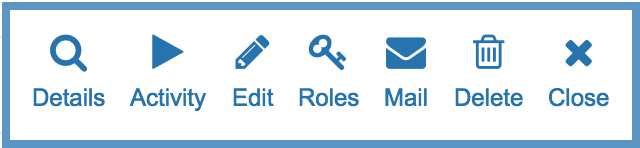
- Find your email in the list and then select Mail from the action menu.
- Click the check box next to Gmail to assign your Gmail account to your INgageHub account
- Click the + to configure the credentials, email, and test address for your account.

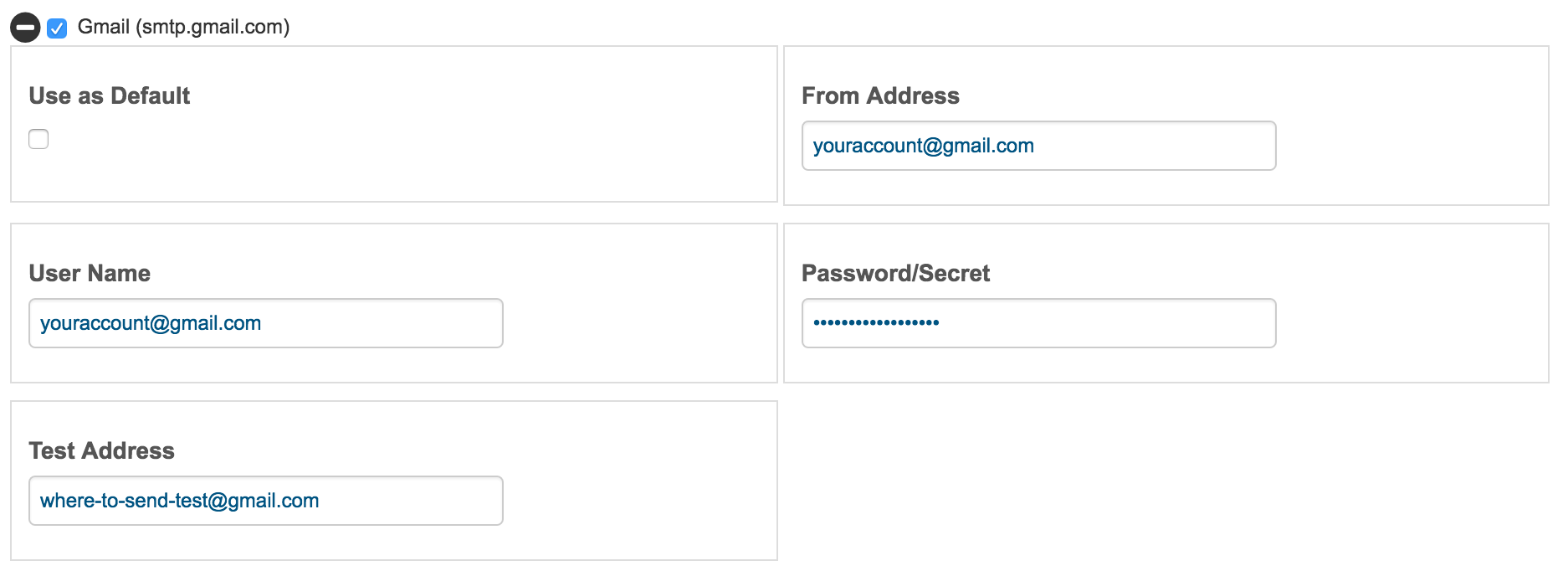
- Click save and confirm you have received a test message from INgageHub!
0 Comments